
How to protect your contact form, at a glance
Find your platform below and follow the steps. On most website builders this is a setting you already pay for and takes about two minutes. Only hand-built forms need real work — and that section says plainly which part people get wrong.
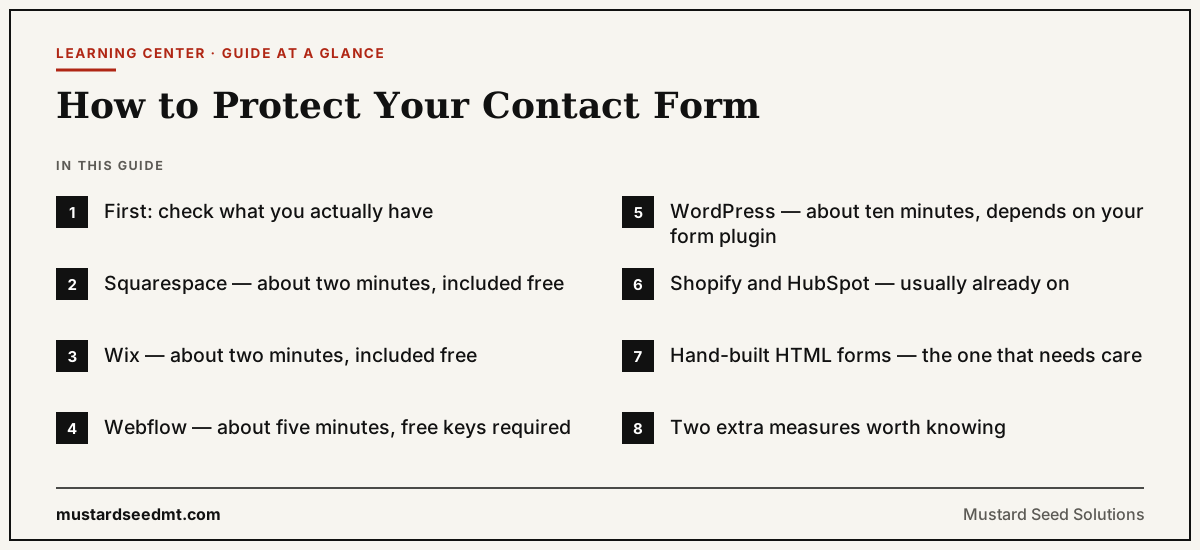
First: check what you actually have
Do not skip this. Invisible protection looks identical to no protection when you view your own site, so guessing wastes time in both directions — either you add a second challenge you did not need, or you assume you are covered when you are not.
Run your address through the free check, then jump to your platform below.
Squarespace — about two minutes, included free
Included on every Squarespace plan. No code, no add-on, no separate account.
- 01
Edit the page and click your form block.
- 02
Open the block settings, then the Advanced tab.
- 03
Turn on the reCAPTCHA / spam protection toggle.
- 04
Save and publish, then send yourself a test message.
Wix — about two minutes, included free
Wix Forms include a CAPTCHA field natively — you do not need an app or a higher plan for this.
- 01
Open the page in the Wix Editor and select your form.
- 02
Open Form Settings.
- 03
Add the CAPTCHA field to the form.
- 04
Publish, then submit a test enquiry yourself.
Webflow — about five minutes, free keys required
The component is built into Webflow; you supply free Google reCAPTCHA keys from Google's own console. Budget a few extra minutes for creating those keys the first time.
- 01
Select the form in the Designer.
- 02
Open Form Settings in the right-hand panel.
- 03
Add the reCAPTCHA element and paste in your Google reCAPTCHA site key and secret.
- 04
Publish and send a test submission.
WordPress — about ten minutes, depends on your form plugin
WordPress is the platform where this genuinely varies, because the form could have been built half a dozen ways. Step 4 matters more here than elsewhere: anti-spam plugins can be over-aggressive, and a form that silently eats real enquiries is worse than the spam was.
- 01
Find out which plugin built your form — Contact Form 7, WPForms, Gravity Forms and Elementor Forms are the common ones.
- 02
In Plugins → Add New, install an anti-spam option that matches it: Akismet works broadly, and there are free Turnstile plugins for Contact Form 7.
- 03
Activate it and complete its setup, which will ask for a free API key.
- 04
Send yourself a test message and confirm it still arrives.
Shopify and HubSpot — usually already on
Shopify applies a CAPTCHA to contact forms automatically; check Settings → Checkout for the Google reCAPTCHA option, and if you use a third-party form app, enable protection inside that app instead.
HubSpot has bot protection built into the form editor under Options, on all tiers including free. Enable it and republish the form.
For both, the job is to confirm rather than to add. Adding a second challenge on top achieves nothing except friction for real visitors.
Hand-built HTML forms — the one that needs care
Step 4 is the one people skip, and skipping it makes the whole exercise close to decorative. A widget on the page with nothing checking the token server-side stops a casual script and nothing more — anything posting directly to your form's endpoint sails past it.
Keep the secret out of your page source. It belongs in your server configuration or environment variables, never in the HTML.
- 01
Create a free Cloudflare account. You do not need to move your domain or change your DNS to use Turnstile.
- 02
In Turnstile, add a widget for your domain. You get a sitekey (public) and a secret (private).
- 03
Paste the widget snippet into your form's HTML where you want the challenge to sit.
- 04
In the code that processes the form, send the returned token to Cloudflare's siteverify endpoint and reject the submission if it fails.
Two extra measures worth knowing
Neither is worth building yourself if your platform already offers a proper challenge. They matter mainly for custom forms, layered underneath Turnstile rather than instead of it.
- Honeypot field. A hidden input that humans never see and never fill. If it arrives populated, the submission came from a script. Free, invisible, and a useful second layer — but not a substitute for a real challenge.
- Submission timing. A form completed in under a second was not typed by a person. Useful as a signal to flag, but not as a hard block on its own — some people paste in a prepared message and legitimately submit fast.
After you turn it on
Always send yourself a real test message and confirm it arrives where it should. The failure mode that hurts is not spam getting through — it is protection quietly blocking genuine enquiries while you assume everything is fine.
Then be patient. Existing spam decays over weeks rather than stopping the same day, because your address is already on lists that will keep being retried for a while.
Frequently Asked Questions
Which is better, reCAPTCHA or Cloudflare Turnstile?
For a custom form, Turnstile is usually the better choice: it is free, privacy-friendly, and invisible to most visitors. For a hosted platform, use whichever is built in — the native option is far less likely to break, and that reliability matters more than the difference between the two.
Do I need a Cloudflare account for my website?
No. Turnstile works on any website regardless of where it is hosted, and you do not need to move your domain or DNS to Cloudflare to use it. You only need a free account to generate the keys.
How do I know it worked?
Send yourself a test submission first and confirm it arrives — that is the important check. Then re-run the free form check: if a recognised challenge is now visible in your page, it will report it. Spam volume itself will take a few weeks to fall away.
My form is built with a plugin I did not install. What now?
Look at the form's HTML for a clue to its origin, or check your active plugins list for anything with 'form' in the name. If you cannot tell, this is a reasonable thing to bring to a call rather than guess at — a wrong change to a live form is easy to make and easy to miss.
Will this stop someone sending abusive messages by hand?
No. Bot challenges filter automation, not people. A human who wants to type something unpleasant into your form will still get through, and that is a moderation problem rather than a technical one.
Would rather someone just did it?
Thirty minutes, your website, a straight answer
Bring your site and your logins. We will turn on the right protection for your platform, send a test enquiry to prove real messages still arrive, and I will flag anything else on the site worth knowing about. If it is a two-minute toggle, I will say so.
Book a free 30-minute call